SpiderMan Simulator Controls
Every input for swinging, climbing, sprinting, rolling, and melee combat—PC and mobile in one place.
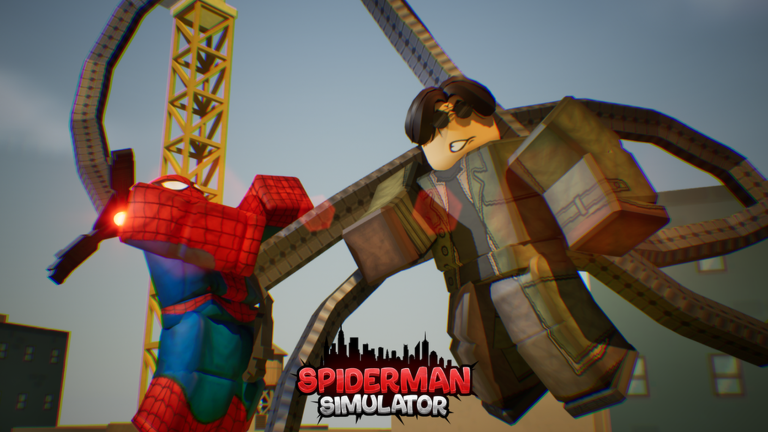
SpiderMan Simulator [BETA] by Clever Wizard Entertainment is built around fast web movement and close-range brawling. If your first session feels clumsy, the problem is usually controls—not progression. This hub collects every official input, explains how movement and combat interact, and links to platform-specific breakdowns so you can stop fighting the camera and start farming Cash efficiently.
The game lists core bindings on its Roblox description page: Left Ctrl to roll, Left Shift to sprint, and Space to climb. Those three keys sit on top of standard WASD movement and mouse look, which means most PC players already know half the layout before they load in. What the description does not spell out is timing—when to sprint during a swing arc, how roll cancels enemy hitboxes, and why climb matters on vertical boss arenas.
Why controls matter in SpiderMan Simulator
Cash comes from defeating villains and clearing objectives across the city. Slow movement means fewer kills per minute, which delays suit unlocks and ability upgrades. Suits such as Miles 2099, Iron Spider, Noir, Spider-Woman, and Gwen variants add passive boosts, but those bonuses only help if you can reach targets and survive long enough to collect drops.
Rebirth and late-game ability tiers assume you can chain movement into melee without whiffing attacks. Players who master roll and sprint first often report smoother boss attempts even before they buy expensive skins. Treat controls as part of your build—not a tutorial checkbox you skip after five minutes.
PC vs mobile
Roblox serves the same experience on desktop and phone, but the control schemes differ sharply. PC players get precise mouse aim for web lines and camera control during combat. Mobile players rely on touch joysticks, on-screen buttons, and gesture-style camera movement that takes practice on smaller screens.
Use PC Controls for full keyboard and mouse tables, including optional menu remapping through the in-game M key panel. Use Mobile Controls for touch layout notes, sensitivity tips, and how to avoid mis-tapping climb or roll during fights.
Core movement inputs (all platforms)
Regardless of device, SpiderMan Simulator expects you to combine traversal and combat in one loop:
- Move through the city with WASD or a virtual stick.
- Look / aim with mouse or touch drag.
- Web swing using secondary fire (typically right mouse on PC) to attach lines and build momentum.
- Melee attack with primary fire (left mouse on PC) when enemies are in range.
- Jump / climb with Space or the climb button to scale walls and recover height.
- Sprint with Left Shift or the sprint control to close gaps between villain spawns.
- Roll with Left Ctrl or the roll button to dodge telegraphed hits.
The exact labels on mobile may vary by Roblox client version, but the roles stay the same. If a button feels unresponsive, check whether another UI panel (shop, codes, rebirth) is open and blocking input.
Combat and web movement together
SpiderMan Simulator is not a pure clicker. You swing between rooftops, drop onto street-level packs, and punch through health bars while repositioning. Beginners often spam melee while standing still and take free damage. A safer pattern is: sprint or swing in, land two or three hits, roll away, re-attach a web line, and repeat.
Web movement also affects how quickly you pick up Cash orbs. Some game passes expand collection radius, but you still need to path near defeated enemies. Efficient routing—knowing which alleys connect spawn clusters—matters as much as raw DPS from upgraded abilities.
Related guides on this wiki
After you are comfortable with inputs, move on to progression content:
- Getting Started — first-hour goals, Cash loops, and when rebirth becomes relevant.
- Codes Hub — free Cash from promo codes to fund early ability upgrades.
- Best Suits — which skins are worth buying first based on passive boosts.
- Abilities Overview — how Cash upgrades map to combat power.
- Cash Planner — plan spending before you sink hours into the wrong unlock order.
For official announcements when controls change after patches, follow links on Community Links and check Updates Hub when Clever Wizard Entertainment ships a new build.
Quick troubleshooting
If keys stop working after an update, rejoin the server and open the control menu once to reset focus. On mobile, disable Roblox’s shift-lock if camera fights your swings. Lower graphics settings if input lag spikes during large villain crowds—frame drops feel like broken controls even when bindings are correct.
Never share your Roblox account to let someone “fix” settings for you. Adjust bindings yourself inside the game or Roblox client settings only.
Frequently Asked Questions
Quick answers for SpiderMan Simulator on Roblox.
What are the default PC controls in SpiderMan Simulator?
Left Ctrl rolls, Left Shift sprints, Space climbs, WASD moves, and the mouse handles look, web swing (typically right click), and melee (typically left click). Clever Wizard Entertainment lists roll, sprint, and climb on the official Roblox game page.
Is there a separate controls page for mobile?
Yes. Mobile uses on-screen buttons and touch camera instead of keyboard keys. Read the Mobile Controls guide on this wiki for layout notes and sensitivity tips.
Can I remap keys in SpiderMan Simulator?
PC players can open the in-game menu with M to review and adjust bindings where the game exposes them. Roblox-level controls still apply for some client features.
Why do my swings feel slow even with sprint?
Sprint helps ground speed more than air momentum. Chain web attachments at an angle, release at the bottom of the arc, and use climb to recover height before the next line.
Do better suits change controls?
Suits change stats and passives, not the core button layout. Ability upgrades purchased with Cash add combat options but use the same attack inputs.